AI Video Clothes Changer From a Photo: 4 Kinds, 1 Real Test
An AI video clothes changer that works from a photo takes a picture of a garment and a video of a person, and gives the video back with the person wearing it. The tools that come up for this search come in four kinds, and two of them take photos only. Here are the four kinds, how to choose, and our own test on a 12-second clip, run twice and checked against the photo detail by detail. A disclosure first: we make Riffkit, which does the fourth kind.
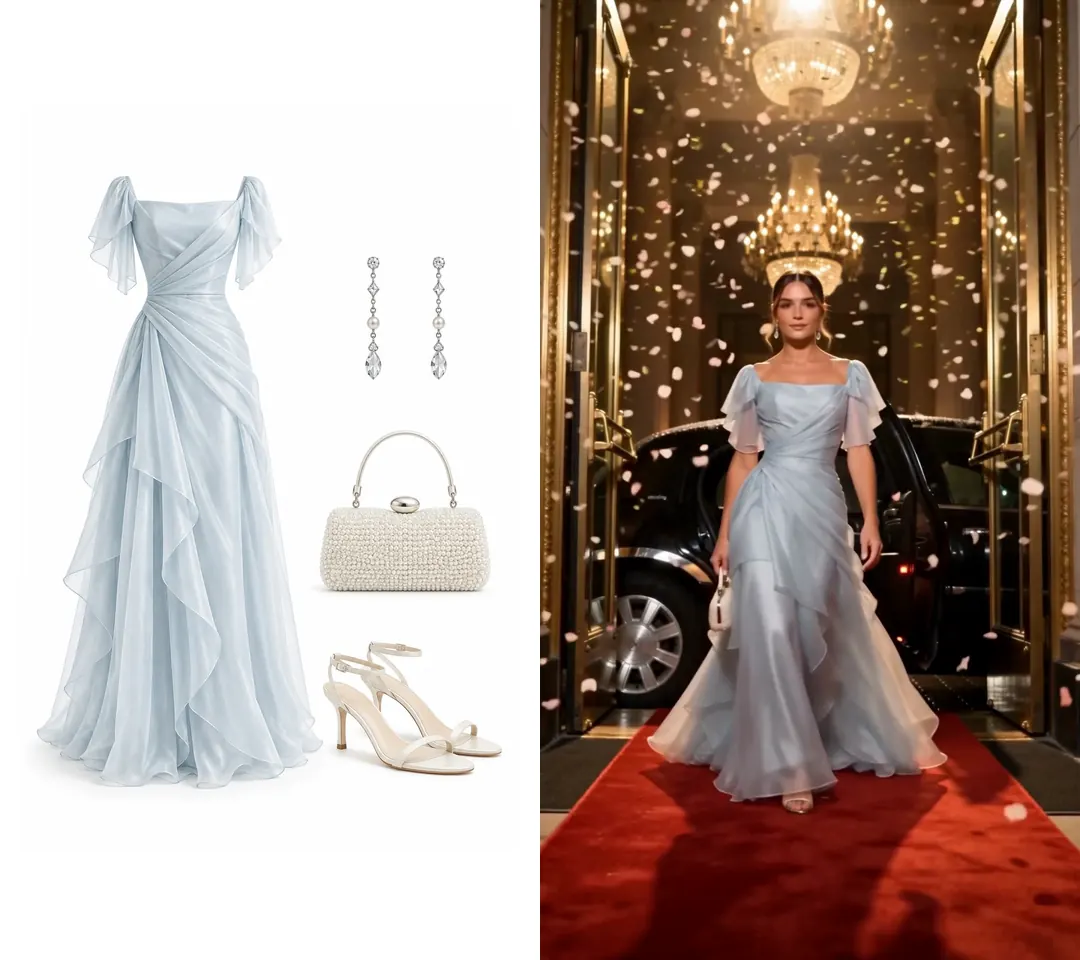
The outfit photo on the left, the Swap on the right. Click for the silent side-by-side with the original clip. Seedance 2.5, 720p, 12 seconds, 2,340 credits.
The four kinds of tool
Sort them by what you give and what comes back. The question to ask is whether your own video goes in.
| Kind | You give it | You get back | Your own video |
|---|---|---|---|
| Image try-on | A photo of a person and a photo of a garment | A still image | Not used |
| Try-on video from photos | A model photo and a garment photo | A new clip with generated movement | Not used |
| Short-clip video edit | A short video and a garment or reference image | The same clip with the garment changed | Edited, in short clips: the limit is 10, 15 or just under 30 seconds, by tool |
| Whole-video re-render | The whole video and an outfit photo | The video drawn again with the outfit | Kept shot for shot, up to 45 seconds |
Examples. Each named tool is described from its own page as of October 11, 2026:
- Image try-on. Kling's Virtual Try-On guide takes one model image and one product image and returns an image. EzUGC's AI Clothes Swap also returns a still, and its page says movement comes from sending that still to its video feature.
- Try-on video from photos. The New Black's Virtual Try-On Video builds a clip of 5 to 30 seconds from a model photo, a garment photo and a described movement. InPose makes an 8-second try-on video from a shopper's photo and a product image. Neither page lists a video upload.
- Short-clip video edit. Vidguru's AI Video Clothes Changer takes a video of 2 to 15 seconds and one garment image. Runway's Edit Studio edits clips longer than 2 seconds and shorter than 30, with up to 10 cuts. You edit one keyframe, where "you may also include a reference image to guide characters, products, objects, or styles", and the model carries that edit through the clip. Kling's VIDEO O1 guide takes one video of 3 to 10 seconds plus reference images. Vidguru's page names a garment image. Runway's and Kling's describe a reference image in general, and neither shows a garment photo as its example.
- Whole-video re-render. This is what Riffkit's Swap mode does, for a clip of up to 45 seconds, cuts included.
How to choose
- You have photos and no video: use try-on. Image try-on gives a still for a listing or a lookbook. Try-on video from photos gives a moving clip, with movement the tool generates.
- You have a clip of up to 30 seconds and one garment: a short-clip edit can fit. Check the length and cut limits first. The three above top out at 10, 15 and just under 30 seconds, and Runway's takes up to 10 cuts.
- Your video runs longer, or you want a full look from one photo: re-render the whole video. Your video's cuts stay where they are, up to 45 seconds, and one photo can carry more than one piece: in our test, the gown, the earrings and the clutch.
- The garment must match the listing exactly: none of these is a product photo. Every kind here draws the garment again. Use the result as ad creative, and keep your own photos for the listing.
A real test, checked against the photo
The source is our own 12-second clip (720x1280), made with AI. It moves from a fire escape to a car to a red carpet, under the caption "can't tonight, way too much going on". The photo is a flat-lay image of our own: a light blue gown with flutter sleeves, long drop earrings, a pearl clutch and white strappy heels.
In Swap we picked the photo, picked no character, and typed this into "What to change", word for word. "@Blue gown" points at the photo: type @ and the box lists the images you picked.
In the car and on the red carpet, she wears @Blue gown: the light blue gown with flutter sleeves and a draped waist, the long drop earrings, the pearl clutch and the white strappy heels, with no gloves and no coat. Leave the fire escape scene as it is. Keep her the same woman: her face, hair, every shot, cut, camera move and pose. Keep the on-screen caption text exactly as it is.
The engine was Seedance 2.5 at 720p. The clip runs 12.04 seconds and each render bills whole seconds, rounded up, so it cost 2,340 credits: 13 billed seconds x 180, the Seedance 2.5 Swap rate at 720p. It took about 8 minutes. Seedance 2.5 and 720p come with a plan.
| In the photo | In the video |
|---|---|
| Light blue gown with flutter sleeves | In the car and on the red carpet, the two scenes the brief named. In the dim car it reads greyer than the photo and the sleeves are fuller |
| Square neck, draped waist, layered skirt | On the red carpet, after the first second and a half of that shot. Until then the neck is rounder and the skirt plainer |
| Long drop earrings | In the car and on the red carpet, longer than the pair she wore in the original |
| Pearl clutch | Beside her on the seat in the car, and in her hand on the red carpet, where it is small in frame |
| White strappy heels | Not shown by this test. A pale strappy shoe shows under the hem, but the original had a similar pair, so it may be the original's |
| No gloves, no coat (written in the brief) | The original's long gloves and cream coat are gone |
The same woman wears the photo's gown in both scenes the brief named. The fire escape scene kept its look: the grey sweatshirt, with the phone still on her shoulder. The cuts land on the same frames as the original, and the caption reads the same. Our brief also described each piece in words, so this run shows the photo and the words together.
The table shows where the gown differs from the photo. Three more things drifted. The view through the car window changed from a rainy street to a lit building. In the car the arm nearer the camera is bent, with the hand on her thigh, where the original had it down on the seat. On the red carpet an ivory layer shows behind the skirt; the photo's gown is one color.
The same photo with nothing written. We also ran it with "What to change" left empty, on Seedance 2.0 Fast at 480p, the engine a free account starts on. We ran it on a plan, so it came back whole, in about 7 minutes, for 650 credits (13 x 50). On free credits, a clip this long usually starts with a free first section, and a plan finishes the rest. In this run the fire escape kept its sweatshirt. On the red carpet the gown followed the photo, sleeves and clutch included, but the original's long gloves stayed on. In the car the clutch appeared, but the gown only turned light blue: it kept the original's cut, with no flutter sleeves, and the gloves and the original earrings stayed.
So picking a photo, with nothing written, changes the look, though not in every scene and not every piece. The run that followed the photo in both gown scenes had a written brief and a costlier engine at 720p, so this test does not show which of those did it. The gown has no print or logo, so those are untested.
How to do it in Riffkit Swap
- Add the photo. Open References in the app's menu and upload it. The app names it and gives it a type. Open the image, set Type to Outfit if it shows something else (only an Outfit is worn), and rename it if you like: ours was "Blue gown". You can also upload from the picker in step 3, where a product's images sit under My products.
- Open Swap and add your clip. Upload a file up to 100 MB, paste a TikTok link or pick a template. Swap keeps the full length, up to 45 seconds.
- Pick the photo and submit. Under the character picker, tap Add next to "Reference images (optional)", choose the photo and tap Done. The box "What to change" can stay empty. To say where the outfit goes and what must show, type @ there, pick the photo's name and write a sentence around it, as we did. Pick the engine and resolution in the same form. The page shows the credit total before you submit. With no character picked, the person and the sound stay as they are in your clip. The finished video appears in your library; ours took about 8 minutes.
Our outfit swap guide has the longer version, with the written brief for clips that need a different look in each scene. To put the garment on a model of your own, save a character and pick it in the same form.
Which photo and clip to use
- A flat-lay or a hanger shot, with no faces. The video engine can turn down a photo with a real face in it. If your only photo is on a model, crop it so the face is out of frame.
- One full-look photo, or one photo per part. One photo can show the full look. Or use separate photos for the top, the bottom and outerwear, and set each one's Part under Type so they are read as one outfit. A free account keeps one reference image, so separate parts need a plan.
- A clip with someone on screen. The outfit needs someone to wear it. If the clip shows no one, a Swap that depends on the outfit photo stops before it renders, and nothing is charged.
- A second outfit follows the clip's own changes. Pick two outfits and the second comes in only where the clip itself changes outfit or place. To choose where, type @ in "What to change", pick that photo and say where. We have tested one full-look photo per Swap so far.
- A photo you took or have the rights to.
For a product that is held and shown instead of worn, see how to replace the product in a video.
What it costs for a catalog
A garment worn through the whole clip needs its own Swap, so ten garments on the same clip are ten Swaps. Swap bills per second of finished video:
| Engine | Swap credits per second |
|---|---|
| Seedance 2.0 Fast | 50 at 480p, 100 at 720p |
| Seedance 2.0 | 60 at 480p, 120 at 720p, 300 at 1080p |
| Seedance 2.5 | 90 at 480p, 180 at 720p |
| MiniMax H3 | 80 at 768P, 160 at 2K |
Each render bills whole seconds, rounded up, and failed renders aren't charged. Our 12-second test cost 2,340 credits per Swap on Seedance 2.5 at 720p and 650 on Seedance 2.0 Fast at 480p, so ten garments on that clip come to 23,400 or 6,500 credits. Plans start at $15 a month for 3,000 credits, and the larger ones are on the pricing page.
New accounts start with free credits, no card needed. A free account can Swap at 480p on Seedance 2.0 Fast or Seedance 2.0 and keeps one reference image. A short clip comes back whole; most longer ones start with a free first section, and a plan finishes the rest. Videos made on the free credits carry a small Riffkit watermark, and any plan removes it from every video.
Limits to know before you start
- The garment is drawn again, so details can differ. In our run with nothing written, the original's gloves stayed on, and in one scene the gown only changed color. With a brief that named each piece, on Seedance 2.5 at 720p, both gown scenes followed the photo, though the red-carpet gown took about a second and a half to settle and showed an ivory layer the photo doesn't have. Our test gown had no print or logo, so check any print, any logo and the garment's length against your photo before you post.
- It is ad creative, and your listing still needs product photos. A re-rendered garment is a new drawing: close to the photo, not the photo.
- Use footage and garments that are yours. Swap keeps the source's music, and someone else's video still belongs to them. For another creator's winner, use Adapt, a different Riffkit mode: it keeps the formula and makes new footage (where the line sits).
Try it on your own clip
Open Swap, add a clip of up to 45 seconds and one photo of the clothes. The price shows before anything renders.
FAQ
What is an AI video clothes changer?
It is a tool that changes what a person wears in a video. Some work from a sentence that describes the new clothes, and some take a photo of the garment. Tools that come up under this name and take a photo fall into four kinds: image try-on, which returns a still; try-on video from photos, which makes a new clip with generated movement; short-clip video edits, which change the garment in a short clip (the limit is 10 to 30 seconds, depending on the tool); and a whole-video re-render, which draws the full video again with the outfit and keeps its shots and cuts. Only the last two work on a video you already have. Riffkit's Swap mode is the last kind, for clips up to 45 seconds.
Which AI tools change clothes in an existing video from a garment photo?
From each tool's own page, as of October 11, 2026: Vidguru's AI Video Clothes Changer takes a video of 2 to 15 seconds and one garment image. Runway's Edit Studio edits clips longer than 2 seconds and shorter than 30, with up to 10 cuts: you edit one keyframe, which a reference image can guide, and the model carries the edit through the clip. Kling's VIDEO O1 guide takes one video of 3 to 10 seconds plus reference images. Runway's and Kling's pages describe a reference image in general and show no garment photo as the example. Riffkit's Swap mode takes a clip of up to 45 seconds and an outfit photo, and renders the whole video again with the same shots and cuts. Kling's Virtual Try-On, EzUGC's AI Clothes Swap, InPose and The New Black's Virtual Try-On Video take photos as input, and their pages list no video upload.
Is virtual try-on the same as a video clothes changer?
Usually not. Virtual try-on mostly means a photo of a person plus a photo of a garment, with a still image back; Kling's Virtual Try-On guide describes it that way as of October 11, 2026. A try-on video is usually a new clip generated from those photos, so the movement is generated and is not your footage. A video clothes changer works on footage you already have. If you need the same person, the same shots and the same timing as your video, look for a tool that takes the video itself as input.
How close does the result come to the product photo?
In Riffkit's test the result came close in the run that had a brief naming each piece, on Seedance 2.5 at 720p, and looser in the run with nothing written, on Seedance 2.0 Fast at 480p. The test does not show whether the brief or the engine made the difference. One flat-lay photo of a light blue gown with earrings, a clutch and heels went onto a 12-second clip, and the garment is drawn again in every frame. With the brief, the gown, the pearl clutch and the drop earrings from the photo appeared across the two scenes the brief named: flutter sleeves in the car, and the square neck, draped waist and layered skirt on the red carpet. On the red carpet the gown took about a second and a half to settle into that cut, an ivory layer showed behind the skirt, and the frames don't show whether the heels changed, because the original wore a similar pair. With nothing written, the gown followed the photo on the red carpet but the original's gloves stayed on, and in the car the clutch appeared but the gown only changed color. The test gown had no print or logo, so those are untested. Check the result against the photo before you post it, and keep your product photos for the listing.
How long can the video be?
It depends on the tool. As of October 11, 2026, Vidguru's page lists videos of 2 to 15 seconds, Kling's VIDEO O1 guide lists 3 to 10 seconds, and Runway's Edit Studio lists clips longer than 2 seconds and shorter than 30, with up to 10 cuts. Riffkit's Swap mode takes a clip of up to 45 seconds and keeps its full length, so trim a longer one first.
Can I try an AI video clothes changer for free?
You can try Riffkit's Swap mode free, with no card needed. New accounts start with free credits, can Swap at 480p on Seedance 2.0 Fast or Seedance 2.0, and keep one reference image. A short clip comes back whole, and most longer ones start with a free first section that a plan finishes. Videos made on the free credits carry a small Riffkit watermark, and any plan removes it from every video. Plans start at $15 a month for 3,000 credits.
Keep reading
Best AI to Replace Character in Video: 4 Kinds, 1 Real Test
The best AI to replace a character in a video depends on what you keep. Four kinds of tool, how to choose, and our real 12-second test with what drifted.
Replace a Product in a Video with AI: Same Shots, Real Test
Swap the product in a video with AI and keep every shot. Our real test: a 15-second lipstick clip, a new product, the exact cost and what drifted.
Change Outfit in Video with AI: New Clothes, Same Shots and Cuts
Change clothes in a video with AI and keep every shot and cut. Our real test: the exact brief, a silent before and after, the cost and what drifted.