Replace a Product in a Video with AI: Same Shots, Real Test
You can replace the product in a video with AI and keep every shot, motion and line. Here is how with Riffkit's Swap mode, from a real test: one 15-second lipstick clip, a different lipstick, the cost, the time and what drifted. A disclosure first: we make Riffkit.
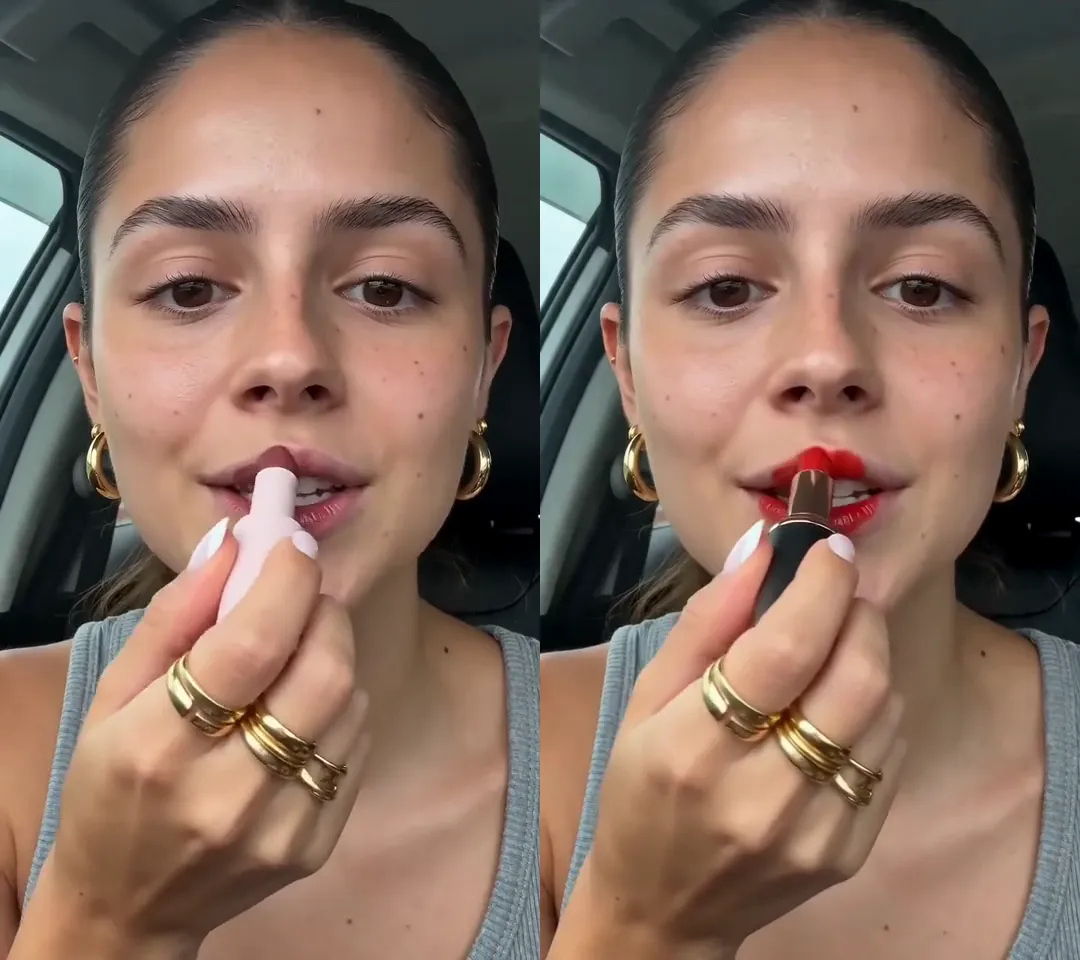
Click for the silent side-by-side: the original on the left, the Swap on the right. Seedance 2.5, 720p, 15 seconds, 2,880 credits, about 14 minutes from upload to video.
How an AI product swap works
Swap renders the whole video again on the source's own clock. The person, the place, the shots, the motions and the timing stay where the original has them, and the product you add takes the place of the thing being held, shown or used. Your product is drawn from its photos, so it sits in her hand and catches the same light as the rest of the scene.
Two things follow from that. The voice and the words stay the source's. And because every frame is rendered again, colours and small details can drift, so check the result before you post it.
The test: one lipstick for another
The source is our own 15-second Spanish UGC clip (720x1280), made with AI and shown on our homepage: a creator in a car holds up a pink lipstick, twists it up, puts it on, shows the colour and smiles at the camera.
The product is a demo lipstick we made up for this test: a matte-black tube with a thin rose-gold band and a coral-red bullet. We added it as a product with two photos on a plain grey background, one closed and one open, and no brand name on either.
Then we uploaded the clip in Swap, picked the product, left "What to change" empty and kept the original person. A product with photos counts as the change on its own. We ran it on Seedance 2.5 at 720p in one go. It cost 2,880 credits: the clip runs 15.07 seconds, each render bills whole seconds rounded up, so that is 16 billed seconds x 180 credits, the Seedance 2.5 Swap rate at 720p. A new upload is analysed first (about 2 minutes here), then the render took about 12.
| Moment | Original | Swap |
|---|---|---|
| Holds it up to the camera (0-2 s) | Pink tube | Matte-black tube with the rose-gold band |
| Twists it up (3-5 s) | Mauve bullet | Coral-red bullet |
| Puts it on (5-8 s) | Mauve lips | Coral-red lips, black tube in her fingers |
| Shows it again (9 s) | Pink tube, mauve bullet | Black tube, but the bullet looks dusty rose |
| Next beat (11-12 s) | Smiles, then covers her mouth | Swatches it on the back of her hand, in a mauve shade |
| Kiss mark on her palm (13 s) | Mauve print | Red print |
| Smiles with it (14 s) | Pink tube | Black tube, red lips |
The new lipstick is in every beat. Her face, hair, rings, earrings, top and the car stayed, and the shots, motions and timing line up with the original.
Two details drifted. Around 9 seconds the bullet in her hand looks closer to the old dusty-rose shade than to coral. And at 11 to 12 seconds the smile and the hand over her mouth became a swatch on the back of her hand, in a mauve shade rather than the coral one. The words did not change: she still says "este glos" (this gloss) and the rest of the original lines, word for word, over a lipstick.
How to replace the product in your video
- Add your product. Open Products, give it a name and a one-line description, and add one to eight photos. Clean photos on a plain background work best; a closed and an open shot told the model both what the packaging and the colour look like. Leave each photo on Keep original, the default, so it is used as it is. Every photo has a name, and writing that name in "What to change" puts that photo on screen.
- Open Swap and add the clip: an upload up to 100 MB, a TikTok link of your own post, or a template. Swap keeps the full length, up to 45 seconds.
- Pick the product. Leave the person as the original, or pick a saved character to change them too.
- Optionally, write one line in "What to change", for example a keep-line for something that must stay, like "Keep her rings and the car exactly as they are".
- Pick an engine and check the price. A paid Swap defaults to Seedance 2.5 at 720p, the settings we used. The page shows the billed seconds and the credit total before you submit.
From Claude or ChatGPT, the same job is one request through the Riffkit connector: put your product into a video that already works.
How to pick a source for a product swap
- The product should be big and clear in the shots. In our clip she holds it close to the lens in most beats, so the swap had a lot to draw.
- The lines should fit your product. Swap keeps the voice and the words. A creator who says "this gloss" will still say it over your lipstick, and a voiceover that names a brand will still name it.
- Text in the picture stays. A caption or a label already in the frame is kept, so pick a source without the old brand on screen.
- Same kind of product swaps best. Ours went lipstick for lipstick, so twisting it up and putting it on still made sense. A product that is used differently can change the motions.
- Check colour, label and logo. The whole clip is rendered again, and our 9-second shot drifted toward the old shade. A Seedance 2.5 480p draft costs half the 720p rate and shows these early.
What it costs, and how to start free
Swap bills per second of finished video, at its own rates:
| Engine | Swap credits per second |
|---|---|
| Seedance 2.0 Fast | 50 at 480p, 100 at 720p |
| Seedance 2.0 | 60 at 480p, 120 at 720p, 300 at 1080p |
| Seedance 2.5 | 90 at 480p, 180 at 720p |
| MiniMax H3 | 80 at 768P, 160 at 2K |
Each render bills whole seconds, rounded up. Failed renders aren't charged. Plans start at $15 a month for 3,000 credits.
New accounts start with free credits, no card needed, and can Swap on Seedance 2.0 Fast 480p or Seedance 2.0 480p with one saved product. A short clip comes back whole; most longer ones start with a free first section, and a plan finishes the rest. Riffkit adds no watermark. So far we've run this product test on Seedance 2.5 only.
Rights: swap the product in videos you own
The lipstick clip is ours, made with AI, and the demo product's photos are ours too. Use footage you own or have the rights to: the person and the voice in someone else's video still belong to them, whatever product they hold. For someone else's winning ad, use Adapt, Riffkit's other mode: it keeps the formula and makes new footage with your product. Recreating a competitor's TikTok ad walks through it.
Try it on your own video
Open Swap, add a clip of your own up to 45 seconds and a product with a photo or two, and submit. To change the clothes instead of the product, see our outfit swap test.
FAQ
How do I replace a product in a video with AI?
In Riffkit's Swap mode, add a video you own (an upload up to 100 MB, a TikTok link of your own post, or a template, up to 45 seconds), add your product with one or more clean photos, and submit. A product with photos is enough of a change on its own. Swap renders the whole clip again with the same shots, timing, motions and voice, and draws your product from its photos wherever the old one was held, shown or used. In Riffkit's 15-second test the new product appeared in every beat, and two details drifted, so watch the result before you post it.
Which AI can swap the product in a UGC video?
Riffkit's Swap mode does it, in the Riffkit app or from Claude or ChatGPT. You start from a UGC video of yours that already works, or a template, and add your product with a picture. Riffkit renders the clip again on the source's own clock: the same person, setting, shots and timing, with your product in their hands. In a 15-second lipstick test on Seedance 2.5 at 720p it took about 14 minutes and 2,880 credits.
Does the person still say the old product's name after a product swap?
Yes. Swap keeps the source's voice and words, so a line that names or describes the old product stays as it was. In Riffkit's lipstick test the creator still says "este glos" (this gloss) while she holds the new lipstick. Pick a source whose lines fit your product, or a clip where the product speaks for itself on camera. Text already in the picture also stays.
How much does it cost to replace a product in a video with AI?
Riffkit bills Swap per second of finished video. Swap rates in credits per second: Seedance 2.0 Fast, 50 at 480p and 100 at 720p; Seedance 2.0, 60 at 480p, 120 at 720p and 300 at 1080p; Seedance 2.5, 90 at 480p and 180 at 720p; MiniMax H3, 80 at 768P and 160 at 2K. Each render bills whole seconds, rounded up, so Riffkit's 15.07-second product test on Seedance 2.5 at 720p billed 16 seconds, or 2,880 credits. Failed renders aren't charged. Plans start at $15 a month for 3,000 credits.
Can I put my product into someone else's TikTok ad?
Use Adapt for that, not Swap. Swap keeps the source's people, place and voice, so it is for videos you own or templates. Adapt, Riffkit's other mode, takes the winning ad's formula (the hook, beats and pacing) and makes new footage with your product, your story and, if you want, your saved character. Nothing from the original clip is reused.
Can I try an AI product swap for free?
Yes. New Riffkit accounts start with free credits, no card needed, and can Swap on Seedance 2.0 Fast 480p or Seedance 2.0 480p with one saved product. A short clip comes back whole; most longer clips start with a free first section that a plan finishes. Riffkit adds no watermark. Seedance 2.5 and 720p come with a plan; plans start at $15 a month for 3,000 credits.
Keep reading
Change Outfit in Video with AI: New Clothes, Same Shots and Cuts
Change clothes in a video with AI and keep every shot and cut. Our real test: the exact brief, a silent before and after, the cost and what drifted.
Kling Motion Control Alternative: Same Shots and Cuts, Your Character
Looking for a Kling Motion Control alternative? What Kling does well as of October 2026, and when keeping a whole video's shots and cuts fits better.
Seedance Character Swap: Replace a Character, Keep Every Shot
How to do a Seedance character swap: set up a character from one photo, then reshoot a clip with the same shots and cuts. Steps, engines and rates.