Best AI to Replace Character in Video: 4 Kinds, 1 Real Test
The best AI to replace a character in a video depends on what you want to keep. A face swap keeps your footage and changes only the face. Motion transfer keeps a movement and gives it to a character image. A whole-video re-render keeps the shots, cuts and timing and changes who is in them, and a node workflow keeps whatever you build by hand. A disclosure first: we make Riffkit, which does the third kind.
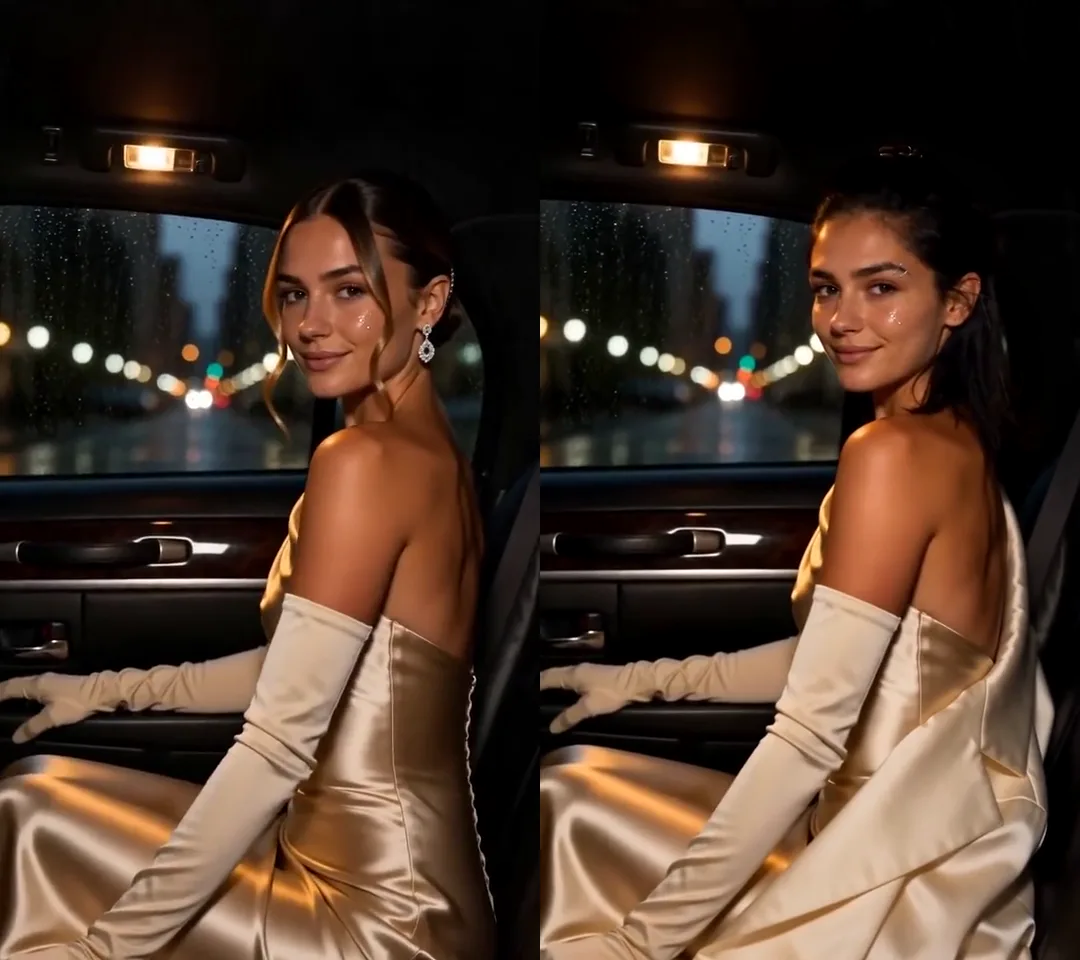
Click for the silent side-by-side: our own 12-second clip on the left, the same clip with a saved character in her place on the right. Seedance 2.5 at 720p, about 5 minutes to render.
The kinds of AI that replace a character in a video
Sort the tools by what you give them and what they leave alone. The kind of tool matters more than the brand.
| Kind of tool | What you give it | What stays from your video | What it is good for |
|---|---|---|---|
| Face swap | Your video and a photo of a face | The footage itself: body, clothes, scene and movement | Changing a face and nothing else |
| Motion transfer (also called motion control or animate) | One image of a character and a video to drive it | The movement and the expressions | Making a still character perform a move |
| Whole-video re-render with a character reference | The whole video and a saved character | The shots, cuts, camera moves and timing. Every frame is drawn again | A finished video with several shots that you want back with your character in it |
| Manual compositing or a node workflow | The video, plus your own masks, models and settings | Whatever you choose to keep | Full control over every step, when you want to build the pipeline yourself |
Examples. Each named tool is described from its own page as of October 10, 2026:
- Face swap. A video face swap takes your clip and one photo of a face. It puts that face on the character in the clip and leaves the body, the clothes, the scene and the movement as they were.
- Motion transfer. Kling Motion Control, per its guide, assigns motion from an uploaded video to one character in an image. The action video runs 3 to 30 seconds and "must be a single continuous shot, with the character consistently visible in the frame." Wan-Animate, from Alibaba's Tongyi Lab, animates a character image from a performer's video. Its page describes a second mode that puts the animated character into the reference video "to replace the original character", matching the scene's lighting and color tone.
- Whole-video re-render. This is what Riffkit's Swap mode does, for a clip of up to 45 seconds. Higgsfield's Genjutsu page says its Motion Transfer mode "keeps the motion, camera and timing while rebuilding the scene from your references", for reference videos of 4 to 30 seconds.
- Node workflow. ComfyUI's docs call it "a node-based interface and inference engine for generative AI" that is open source and can run on your local device. You connect the models and the steps yourself.
We set Kling Motion Control next to Swap, row by row, in our Kling Motion Control comparison.
How to choose
- You want the same shots and cuts with a different character: re-render the whole video. The source's edit is the brief. A video with several shots comes back as one video, cut for cut.
- You have only a picture and want it to move: use motion transfer. You bring the character image and a clip of the move.
- You want the footage left as it is: use a face swap or a replace mode. A face swap changes the face only. A replace mode, like the one on Wan-Animate's page, puts a new character into the scene you shot.
- You want the same character across many videos: save the character once. The tool then works from the same photo every time. Our guide to keeping one AI character across every video explains why that holds a face steady.
Whichever you pick, use your own face, a character you created, or one you have the rights to. The same goes for the video you start from.
A real test: one saved character, one 12-second clip
We ran the third kind on a video of our own. Here is what came back.
The source is our own 12-second clip, with scenes on a fire escape, in a car and on a red carpet, and a caption on screen. In Swap we picked a saved character and wrote one line that only named her. The engine was Seedance 2.5 at 720p, and the render took about 5 minutes.
What stayed. Her face is in every shot. The shots, the cuts and the caption stayed where the original has them. In the car and on the red carpet she wears the original's gown and gloves.
What drifted. One scene. On the fire escape she wears the jacket from her character image, and she holds the phone in her hand where the original wedges it between shoulder and ear.
The rerun. We ran it again at 480p with the "What to change" box empty. Her face was in every shot that time too.
So her face was in every shot, and one scene picked up the jacket from the character image. The whole video is rendered again, so small things can move, and it pays to watch every scene before you post. Our Seedance character swap guide has the photo layout we recommend and the rate for each engine.
How to replace a character with Riffkit Swap
- Create the character once. In the web app, open Characters and tap + New character. Add a name, a gender, an age range and one photo: a single face, front-facing and large in the frame, on a plain background. The layout we recommend is one image with two views: a close-up of the face on the left and the full body on the right. The photo passes the video platform's review before the character's first use, usually in under a minute, and the status turns Ready.
- Open Swap.
- Add your video or pick a template. A video can be an upload of up to 100 MB or a TikTok link of your own post. Swap keeps the full length, up to 45 seconds, so trim a longer clip first.
- Pick your saved character. Each character makes its own video.
- Optionally, write under "What to change". Name a prop, an outfit or the setting. Leave it empty and only the character changes. To change the clothes as well, our outfit swap test has the exact brief we used.
- See the price. The page shows the rate per second, then the billed seconds and the credit total, before you submit. When a free account starts with the first section, it shows that section's credits and your balance. For a new upload or link it is an estimate until Riffkit has the file.
- Tap Riff it →. On the Seedance engines, each part of a new clip first passes the video platform's content review, which can take several minutes. A refused clip costs nothing.
The voice depends on the engine. On Seedance 2.0 and 2.0 Fast, the original voice stays. On Seedance 2.5 and MiniMax H3, the new character says their on-camera lines in a new AI voice, and narration keeps the original voice unless you ask for a change in "What to change". Writing "keep the original audio" keeps every voice. The music follows the source.
Working in a chat instead? The same swap runs from Claude or ChatGPT, and replace the person in a video has the sentence to paste.
What you can do for free
You can swap a character in a video on a free account. Signing up takes no card.
- Credits. New accounts start with signup credits, and the page shows what a swap costs before you spend them.
- Engines. Free accounts render at 480p, on Seedance 2.0 Fast (the default) or Seedance 2.0.
- Length. A short clip comes back whole. A clip with more than one section gets its first section on the free account, and a plan finishes the rest.
- Watermark. Free videos carry a small Riffkit watermark. Any plan removes it from every video, earlier ones included.
- Characters. A free account keeps one saved character.
Seedance 2.5, MiniMax H3, 720p and 1080p come with a plan: Lite is $15 a month for 3,000 credits, Creator is $39 for 8,000 and Studio is $99 for 22,000. Swap bills per second of finished video, from 50 credits a second on Seedance 2.0 Fast at 480p, and failed renders aren't charged.
Limits to know before you start
- Small details can drift between shots. A jacket or the way a hand holds a phone can change, as both did in our fire-escape scene. Watch the whole result before you post.
- A character needs a photo behind it. A character described only in words has no reference image, so the face can differ between shots. A saved character gives the model a photo to work from in every shot.
- The source needs someone to replace. A character counts as a change only when the video shows someone on screen. A swap with nothing to change stops before anything is billed.
- Use it on what is yours. Swap is for your own videos, templates, and characters you have the rights to. It keeps the source's music, and someone else's video still belongs to them. For another creator's winner, Adapt, Riffkit's other mode, keeps the formula and makes new footage (where the line sits).
Try it on your own clip
Set up one character, then open Swap with a clip of up to 45 seconds. The price shows before anything renders.
FAQ
What is the best AI to replace a character in a video?
It depends on what you want to keep. A face swap keeps the footage and changes only the face. Motion transfer tools, such as Kling Motion Control, make a character image perform the movement from a reference video. A whole-video re-render keeps the shots, cuts, camera moves and timing and changes who is in them. Riffkit's Swap mode is a whole-video re-render for clips of up to 45 seconds: you pick a saved character, and the video is rendered again with that character in the lead. In Riffkit's own 12-second test on Seedance 2.5 at 720p, the saved character's face was in every shot, the shots, cuts and caption stayed, and one scene picked up the jacket from the character image.
Can I replace a character in a video with AI for free?
You can try it free in Riffkit's Swap mode, with no card needed. New accounts start with signup credits and can swap at 480p on Seedance 2.0 Fast or Seedance 2.0, with one saved character. A short clip comes back whole. A clip with more than one section gets its first section on the free account, and a plan finishes the rest. Free videos carry a small Riffkit watermark, and any plan removes it from every video. Seedance 2.5 and 720p come with a plan, from $15 a month for 3,000 credits.
Does the replaced character keep the original voice?
It depends on the tool and the engine. In Riffkit's Swap mode, Seedance 2.0 and 2.0 Fast keep the original voice. On Seedance 2.5 and MiniMax H3, the new character says their on-camera lines in a new AI voice, and narration keeps the original voice unless you ask for a change in "What to change". Writing "keep the original audio" keeps every voice. The music follows the source video.
How long can a video be when you replace a character with AI?
It depends on the tool. Riffkit's Swap mode takes a clip of up to 45 seconds and keeps its full length, so trim a longer clip to 45 seconds first. As of October 10, 2026, Kling's Motion Control guide lists action videos of 3 to 30 seconds in a single continuous shot, and Higgsfield's Genjutsu page lists reference videos of 4 to 30 seconds.
Keep reading
Replace a Product in a Video with AI: Same Shots, Real Test
Swap the product in a video with AI and keep every shot. Our real test: a 15-second lipstick clip, a new product, the exact cost and what drifted.
Change Outfit in Video with AI: New Clothes, Same Shots and Cuts
Change clothes in a video with AI and keep every shot and cut. Our real test: the exact brief, a silent before and after, the cost and what drifted.
Kling Motion Control Alternative: Same Shots and Cuts, Your Character
Looking for a Kling Motion Control alternative? What Kling does well as of October 2026, and when keeping a whole video's shots and cuts fits better.