How to Change the Background of an Existing Video with AI
To change the background of an existing video without a green screen, you have two options. A background remover (CapCut, Canva, Adobe Express) cuts you out and puts a picture behind you. An AI video editor (Runway Aleph, Riffkit Swap) redraws the clip in a place you describe in words. If you did film against a green screen, iMovie on iPhone replaces it. Below: the three methods side by side, then our own test, an 8-second clip with four shots moved from a living room to a beach boardwalk, with the exact wording we typed, the cost and what came out different. Disclosure: we make Riffkit, one of the AI editors.
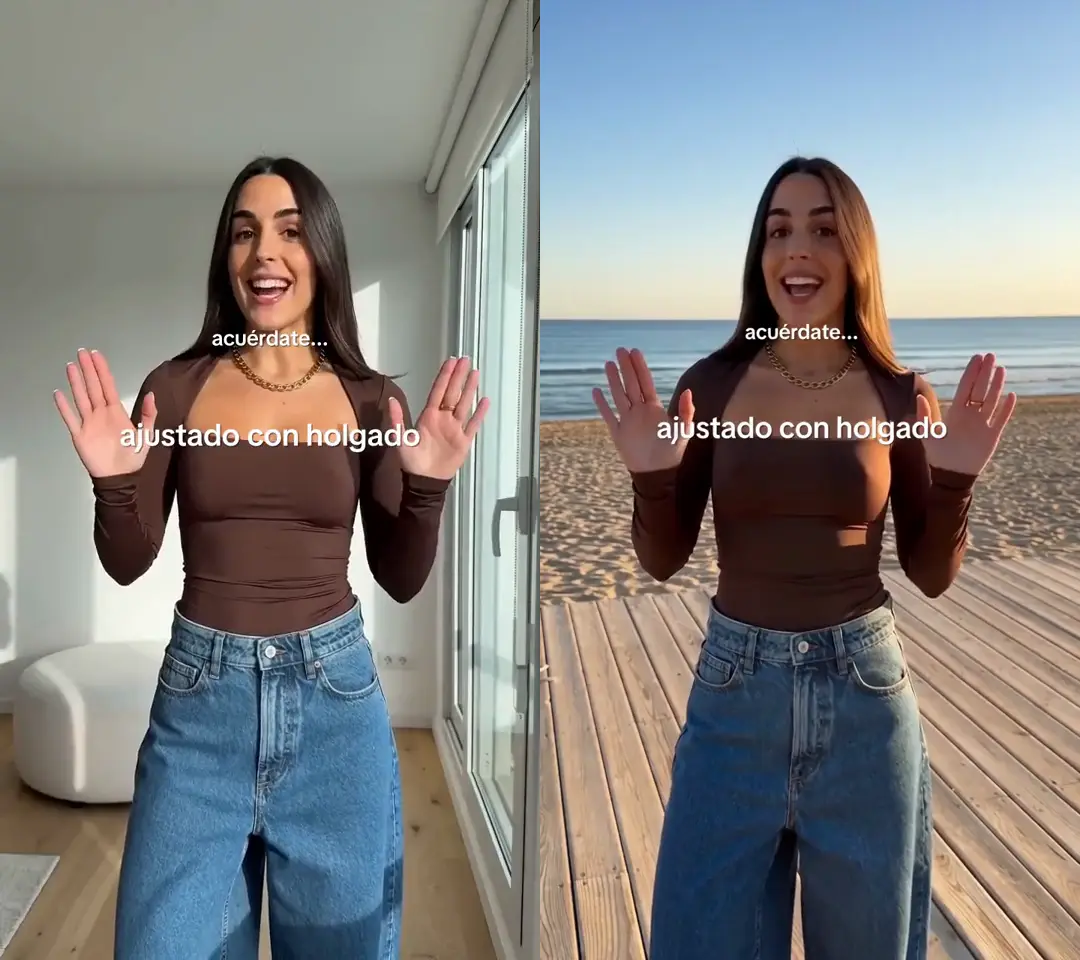
Click for the silent side-by-side: the original on the left, the Swap on the right. Seedance 2.5, 720p, 8 seconds, 1,620 credits, about 10 minutes from submit to finished video.
Three ways to change a video background
Tool names and limits come from each tool's own page, checked October 11, 2026; each name links to that page. The "What happens to you" column is our description.
| Method | You give it | What happens to you | Clip length |
|---|---|---|---|
| Background remover (CapCut, Canva, Kapwing, VEED, Adobe Express) | Your video, plus a picture or video to put behind you: yours, or one from the tool | You stay exactly as filmed; only what is behind you is replaced | Canva: under 10 minutes per its Help Center. Adobe Express: up to two minutes |
| Green screen (iMovie on iPhone) | A video filmed against a green or blue screen | You stay as filmed; the green or blue is replaced | Not stated on Apple's page |
| AI video editor (Runway Aleph, Luma Modify Video, Kling, Higgsfield, Gemini, Riffkit Swap) | Your video, plus a sentence about the new place | The clip is generated again, you included, so the new light can fall on you | Kling: 3 to 10 seconds. Luma: up to 20 seconds. Runway: under 30 seconds. Riffkit Swap: up to 45 seconds |
Background remover. The tool finds you in every frame and removes the rest. CapCut calls it Remove BG, with an Auto removal option. Canva and Adobe Express each have a video background remover, and Kapwing and VEED have the same kind of effect. You pick the new background, as a picture or a video: your own, one from the tool's library, or one its image generator makes. Because your pixels don't change, nothing about your face can change. The edges are the weak point: CapCut's own guide says the AI can erase fine hair or leave a fringe of the old background, and that hair edges can shimmer between frames. A plain cutout also leaves you lit as you were filmed.
Green screen. Apple's support page on changing a clip's background in iMovie describes one method: a clip filmed against a green or blue screen. If you didn't film against one, this method won't work.
AI video editor. You describe the new place and the tool generates the video again. Runway says Aleph 2.0 changes only what you specify. It runs in Runway's Edit Studio, a desktop web app that takes clips shorter than 30 seconds, so it isn't an iPhone option. Luma says Modify Video handles up to 20 seconds, depending on the frame rate. Kling's guide for VIDEO 3.0 Omni, the model behind its AI Video Editor, takes one uploaded video of 3 to 10 seconds; Kling says its 4.0 model, due in October 2026, will edit up to 30 seconds. Higgsfield lists an AI Video Background Changer that uses Kling 3.0 Omni Edit or FLUX 3 Video Edit, and its page says results vary on hair, fast motion and busy scenes. Google's Gemini app edits a video you upload and lists 10-second videos on its own page; Google's help page says this needs a Google AI plan and isn't offered in every US state.
Riffkit's Swap mode belongs here too. It redraws the video one shot at a time and keeps each shot's original length, for clips up to 45 seconds, so a video with several shots keeps its cuts.
How to choose
- Nothing about you may change, or the clip is longer than 45 seconds. Use a background remover and check the hair edges. Check the tool's length limit before you upload.
- You filmed against a green screen. Use iMovie's green-screen effect.
- You want the new place to light you, or you'd like to describe the place in words. Use an AI video editor, and compare the result with the original. Check the length limit first: Kling stops at 10 seconds today, Luma at 20, Runway under 30 and Riffkit Swap at 45.
- You're doing it all on an iPhone. CapCut's app and Riffkit in Safari work on the phone. Runway's Edit Studio is a desktop web app.
A real test: four shots, one new background
The source is our own 8-second clip (720x1280), made with AI. A woman stands in a bright living room and talks to the camera in Spanish, through four shots with four outfits. Each shot carries the caption "acuérdate..." and a label for the look, and three of them end with a green check sticker. We uploaded the file and typed this into "What to change", word for word:
Change only the background. She now stands on a wooden boardwalk by the sea in late-afternoon sun, with the beach and the water behind her, in every shot. Keep her the same woman: her face, hair, each of her four outfits, every cut, her gestures and her framing. Keep the on-screen caption text exactly as it is.
We ran it once on the Seedance 2.5 video model at 720p and left the character on "Keep the original person". It took about 10 minutes from submit to finished video: a minute and a half to analyze the upload, then about 8 minutes to render. It cost 1,620 credits. The source runs 8.04 seconds and each render bills whole seconds, rounded up, so that is 9 billed seconds x 180 credits, the Seedance 2.5 Swap rate at 720p. The quote before we submitted was the same.
We checked 16 pairs of frames, half a second apart, and the sound.
| Shot | Original | Result |
|---|---|---|
| 1 (0 to 2.4 s) | Living room. Brown fitted top, wide jeans, gold chain necklace, both hands raised | Beach boardwalk. The same top, jeans and necklace, the same hands, the check sticker at the same moment |
| 2 (2.4 to 4.1 s) | Living room. White sweatshirt with a red apple print, one finger raised | Beach boardwalk. The same sweatshirt and print, the same finger. A red X sticker that the original doesn't have appears at about 3.4 seconds and stays until the cut |
| 3 (4.1 to 6.2 s) | Living room. White ribbed tank, fitted jeans, gold chain necklace, hair in front of her shoulders, pointing down | Beach boardwalk. The same jeans, the same gesture, the check sticker. The tank's neckline is higher, her hair sits behind her shoulders, and the necklace is gone |
| 4 (6.2 to 8.0 s) | Living room. Gray graphic sweatshirt, loose jeans, two thumbs up | Beach boardwalk. The same sweatshirt and jeans, the same thumbs up, the check sticker |
The background changed in all four shots, and it is the same beach in each. The sea, the sand and the boardwalk sit in the same place from shot to shot; only the sky shifts, from a pale glow at the horizon in the first shot to orange by the fourth. The low sun of the new scene falls on her face and clothes. She is the same woman with the same gestures, and the captions read the same, in the same place.
The cuts held too. The first and third cuts land on the same frames as the original, and the second lands one frame later. The sound is the original's. With the original person kept, Swap kept her voice track. It is the same recording, encoded again, and the two waveforms line up from start to end.
Five things came out different:
- The necklace is missing in the third shot. It is there in the first.
- A red X sticker was added in the second shot. The original has a green check in the other three shots and nothing in this one. Our last sentence named the caption text and didn't name the stickers.
- Her hair changed, though we named it. It is dark brown indoors and a lighter brown with copper in the sun, and in the third shot it sits behind her shoulders, not in front.
- The tank changed cut in the third shot. The neckline is higher and the shoulders are cut away.
- The sky warms from shot to shot. The place stays the same.
One run, one clip, one engine. The clip was AI-made and 8 seconds long. We haven't tested phone footage of a real person, a camera that moves through the room, a crowded source, a clip near the 45-second cap, or the two free engines at 480p.
How to change a video background with Swap
-
Open Swap. It's the first card on the Make videos page.
-
Add the clip. Tap Upload or paste a link next to "Have your own video?", then upload a file up to 100 MB or paste a TikTok link. You can also pick a template. Swap keeps the full length, up to 45 seconds, so trim a longer clip first.
-
Write the new place in "What to change". Say that only the background changes, then describe the place and its light. To start from a ready sentence, tap Move outdoors under the box to add this one, then edit it:
Move the scene outdoors: a sunny afternoon on a tree-lined city street, with shop fronts and a few people walking by in the background.
-
Leave the character on "Keep the original person". Swap then keeps the person in your clip instead of replacing them, and keeps the clip's sound. The person is still redrawn, so small details can change.
-
Pick an engine. A paid Swap defaults to Seedance 2.5 at 720p, the settings we used. Free accounts can Swap on Seedance 2.0 Fast 480p or Seedance 2.0 480p.
-
Check the price and submit. The page shows each engine's rate per second, then the billed seconds and credit total, before you tap Riff it →.
You can also show the place with a photo. Upload it to References in the app's menu, set its Type to Location, pick it under "Reference images" in the Swap form, and type @ and its name in "What to change" to say where it goes. Use a photo with no people in it. The test above used words only, so a place photo is untested here; our outfit guide shows the same steps with a photo of clothes.
On an iPhone
Riffkit runs in Safari, with nothing to install. Open Swap, tap Upload or paste a link, then tap the upload box and pick the video from your Photos library. Write the new place and tap Riff it →. The file uploads when you submit, so keep the page open until the upload bar finishes. After that you can leave the page while the video is made.
If you work in ChatGPT or Claude with the Riffkit connector, a file you attach to the chat does not reach Riffkit. Ask the assistant for an upload link: it gives you a link to a Riffkit page (in some assistants, an upload box right in the chat), you add the video there from your phone, and the assistant prices the Swap and starts it when you say so. How to make videos in ChatGPT and Claude has the setup.
How to write a background description
- Say "only the background". It names the one thing to change.
- Describe the place and its light. "A wooden boardwalk by the sea in late-afternoon sun, with the beach and the water behind her" gives a ground to stand on, a view and a time of day.
- Add "in every shot" when the clip has cuts. Ours had four shots and got the same beach in each. We didn't run it without the phrase, so we can't say the phrase is why.
- End with a sentence that lists what must stay, and name the small things. Ours listed her face, hair, outfits, cuts, gestures, framing and the caption text. Naming helps but doesn't lock a detail: her hair and one top still changed. Next time we'd add "her necklace" and "the stickers", and still compare the result with the original.
More on this: write what changes, not a prompt.
What it costs, and how to start free
Swap bills per second of finished video, at its own rates:
| Engine | Swap credits per second |
|---|---|
| Seedance 2.0 Fast | 50 at 480p, 100 at 720p |
| Seedance 2.0 | 60 at 480p, 120 at 720p, 300 at 1080p |
| Seedance 2.5 | 90 at 480p, 180 at 720p |
| MiniMax H3 | 80 at 768P, 160 at 2K |
Each render bills whole seconds, rounded up, with a 4-second minimum. Failed renders aren't charged. Plans start at $15 a month for 3,000 credits, and the larger ones are on the pricing page. For scale: a 30-second clip is 1,500 credits on Seedance 2.0 Fast at 480p and 5,400 on Seedance 2.5 at 720p.
New accounts start with free credits, no credit card needed, and can Swap on Seedance 2.0 Fast 480p or Seedance 2.0 480p. On the free credits, a clip shorter than 8 seconds comes back whole. A longer clip usually comes back as its first section, and a plan renders the rest. Seedance 2.5, MiniMax H3 and any resolution of 720p or higher need a plan. Videos made on the free credits carry a small Riffkit watermark; any plan removes it from every video, earlier ones included. Our test ran on Seedance 2.5 at 720p only.
Limits to know before you start
- You are redrawn, so details can differ. Check jewelry, hair, logos and hands against the original before you post.
- On-screen text is redrawn too. Captions and stickers that are part of the picture are redrawn with it. To change one, run another Swap that names it.
- If the first try is wrong, run it again with a longer last sentence. A fix is a new Swap, billed like the first. Your upload is saved as a template, so the second run skips the upload and the analysis. A 480p run costs half as much as 720p on the same engine.
- The video engine reviews the footage. On the Seedance engines the source is checked before anything renders, and a clip turned down there costs nothing. The engine can also block a finished render: that render isn't charged, but in a clip long enough to need several renders, the ones already made are.
- Use footage that is yours. Swap keeps the source's sound, and the people and music in someone else's video still belong to them, new background or not.
Try it on your own clip
Open Swap, add a clip of your own up to 45 seconds, write the new place and a last sentence that lists what must stay, and submit. To change what you wear in the same clip, see how to change an outfit in a video; to swap a product you hold, see how to replace the product in a video.
FAQ
How do I change the background of an existing video?
Use a background remover or an AI video editor; no green screen is needed. A background remover, such as the ones in CapCut, Canva or Adobe Express, cuts you out of each frame and puts a picture or video behind you. An AI video editor, such as Riffkit's Swap mode, redraws the clip in a place you describe in words, for clips up to 45 seconds. The first keeps you exactly as filmed. The second lights you for the new place, and small details can change. If the video was filmed against a green screen, iMovie on iPhone can replace it.
Can AI change the background of a video without a green screen?
Yes. Background removers find the person in each frame and remove what is behind them, and AI video editors redraw the whole scene from a description; neither needs a green screen. Riffkit's Swap mode is the second kind. In Riffkit's one test, an 8-second AI-made clip set in a bright living room came back on a beach boardwalk in all four shots, lit by the low sun of the new scene. A necklace, a sticker, one top and her hair came out different, so compare the result with the original.
How do I change the background of a video on iPhone?
Use a tool that works without a green screen. Apple's support page on changing a clip's background in iMovie on iPhone describes one method: a clip filmed against a green or blue screen. CapCut's iPhone app has a background remover (Remove BG) that puts a picture behind you. Riffkit runs in Safari with nothing to install: open Swap, pick the video from your Photos library, type the new background under "What to change" and submit. Keep the page open until the upload finishes. Riffkit's 8-second test took about 10 minutes from submit to finished video.
Can ChatGPT change the background of a video?
Not by itself, as of October 11, 2026. OpenAI's help pages say ChatGPT can analyze a video you attach; they list no video editing or video output. ChatGPT can make a background picture for you to place behind yourself in an editor such as CapCut, or it can call a video service you connect to it. With the Riffkit connector added (in ChatGPT today, by its address with developer mode turned on), you ask in plain words, add your video on a Riffkit upload page the assistant links to, and Riffkit renders the new background in your Riffkit account.
Can I change the background of a video and keep the person the same?
Yes, in two ways. A background remover keeps the person's pixels exactly as filmed and replaces only what is behind them, so use one when nothing about the person may change. An AI video editor redraws the person in the new place, so the new light falls on them, and small details can change. In Riffkit's one 8-second test, her face, gestures, captions and voice stayed. Her gold chain necklace disappeared in one of the two shots it appears in, a red X sticker was added in one shot, one top changed cut, and her hair came out lighter. End your description with a sentence listing what must stay, and compare the result with the original.
How long can a video be for an AI background change?
From about 10 seconds to several minutes, depending on the tool, as of October 11, 2026. Background removers take longer clips: Canva's Help Center says under 10 minutes and Adobe Express says up to two minutes. AI editors that redraw the video take shorter ones: Kling's VIDEO 3.0 Omni guide says 3 to 10 seconds, Luma says Modify Video handles up to 20 seconds, Runway's Edit Studio takes clips shorter than 30 seconds, and Riffkit's Swap mode takes up to 45 seconds and keeps the clip's full length and cuts. Riffkit's own background test used an 8-second clip.
Can I change the background of a video for free?
Yes, with limits. Riffkit's Swap mode is free to try with no credit card: new accounts get free credits and can use Seedance 2.0 Fast or Seedance 2.0 at 480p. A clip shorter than 8 seconds comes back whole; a longer clip usually comes back as its first section, and a plan renders the rest. Free videos carry a small Riffkit watermark, which any plan removes from every video, earlier ones included. Plans start at $15 a month for 3,000 credits. Among background removers, Kapwing's page says free exports are watermarked.
Keep reading
AI Video Clothes Changer From a Photo: 4 Kinds, 1 Real Test
Put the clothes from a photo on the person in a video you already have. Four kinds of AI tool, how to choose, and our 12-second test, detail by detail.
Best AI to Replace Character in Video: 4 Kinds, 1 Real Test
The best AI to replace a character in a video depends on what you keep. Four kinds of tool, how to choose, and our real 12-second test with what drifted.
Replace a Product in a Video with AI: Same Shots, Real Test
Swap the product in a video with AI and keep every shot. Our real test: a 15-second lipstick clip, a new product, the exact cost and what drifted.