Make a Christmas AI Video from a Clip You Already Have
To make a Christmas AI video from a clip you already have, render the clip again with the holiday change written out and everything else kept: the lights, the tree or the pajamas appear, and the person, the moves, the timing and the sound stay. We ran it on four AI-made clips of our own on Seedance 2.0. In all four the holiday look showed up and lasted to the final frame, and the sound came back unchanged. Three bigger things slipped: one caption dropped; cardboard boxes we asked to turn into presents stayed boxes, with presents added beside them; and falling snow barely showed, though the snow on the ground did. Each clip also picked up small details we didn't ask for, listed under each test. A disclosure first: we make Riffkit, whose Swap mode does the re-render.
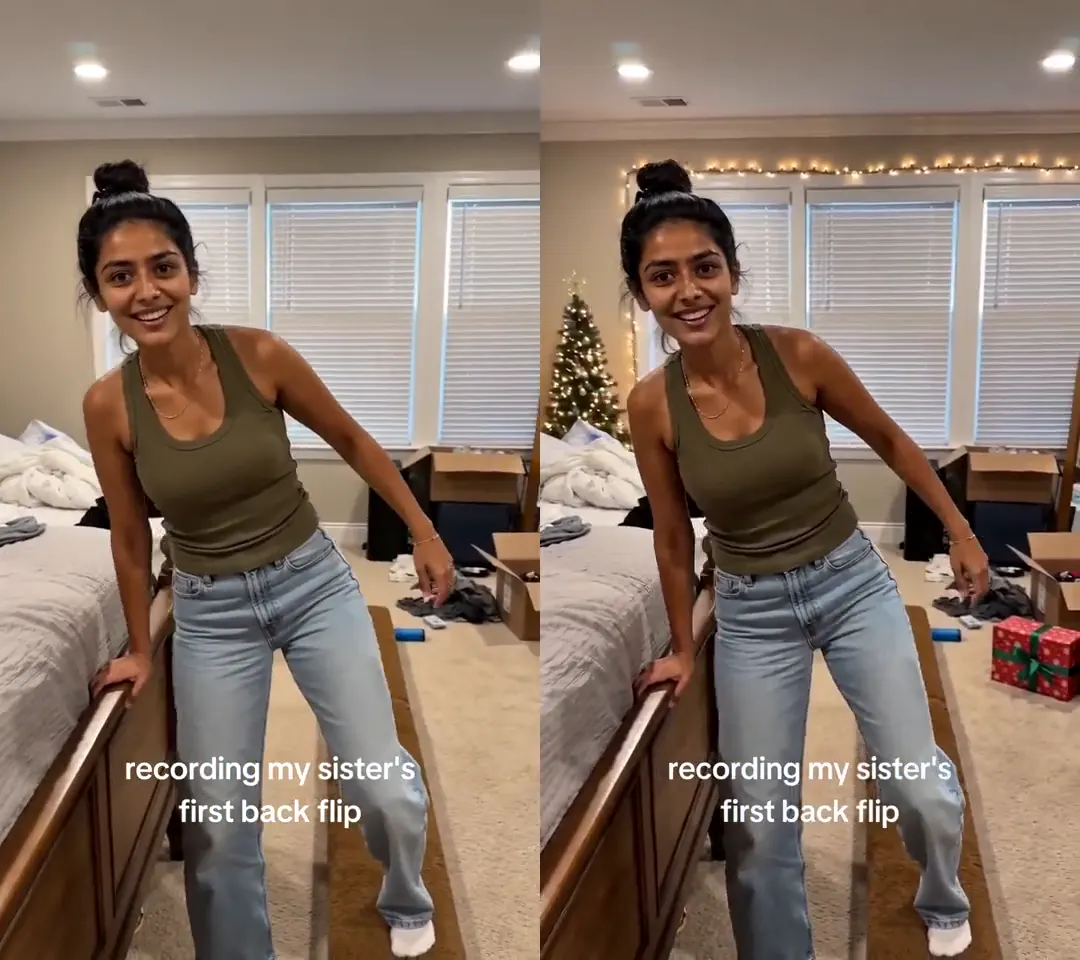
Click for the silent side-by-side: our own 12.5-second clip on the left, the Christmas version on the right. Seedance 2.0 at 720p, from a written brief alone.
Three ways to make a Christmas video with AI
Most Christmas AI video tools make a new video. Fewer work on the clip you already have. Per each tool's own pages, checked November 6, 2026:
| Way | Example | What you give | What happens to your clip | Where it struggles |
|---|---|---|---|---|
| Overlays and background swaps in an editor | CapCut's background replacement | Your clip | Stays. The background is cut out and replaced, and overlays sit on top | Your own room is replaced or left as it was, not decorated |
| Text or photo generators | Kling's text-to-video, Mootion | A prompt, or one frame you edit | Not used. You get a new video from the prompt or the edited frame | Your moves, timing and sound aren't in it |
| A whole-clip re-render | Riffkit Swap | Your clip and a written change | Drawn again, with the moves, framing and timing kept | Everything is redrawn, so small details can drift and text needs checking |
Runway Edit Studio and Kling 4.0's video editing also change an existing clip from a prompt, on clips up to 30 seconds, per their pages on November 5.
Pick by what you need to keep. For falling snow on a greeting, an overlay is quick. For a new Santa clip, use a generator. If the clip already worked, a post that got views or an ad that sold, and you want the same clip at Christmas, a re-render keeps its moves, pacing and sound. Whether the holiday version performs as well is a separate test.
Test 1: decorate the room
The source is a 12.5-second clip we made with AI: a woman in a bedroom walks a narrow wooden beam on the floor, says she'll try a backflip, and falls, with two voices and the caption "recording my sister's first back flip". It's filmed from one spot, with two jump cuts. We ran it on Seedance 2.0 at 720p from the written brief alone, with no reference photo. It was billed as 13 seconds, 1,560 credits, and took about 10 minutes, including the analysis of the clip.
We typed this into "What to change", word for word:
Make this the Christmas version of the same clip by changing only the room's decorations. First, the open cardboard moving boxes on the floor become wrapped Christmas presents in the same spots and sizes, in red and green paper with ribbon bows. Second, add a small Christmas tree with warm white lights in the far left corner behind the bed, and warm white string lights along the top of the windows. Keep everything else exactly as it is: the same woman, her face, expressions, hair bun, olive tank top, light jeans and white socks, the narrow wooden beam on the carpet, every move up to the backflip and the fall, the bed, the window blinds, the mirror, the clothing rack, the clothes on the floor, the camera angle and its shake, the framing, the timing, the sound and both voices, and the caption text and its position. The wrapping paper is plain, with no lettering. Add nothing else: no snow, no hats, no extra people, no new text.
| Brief | Result |
|---|---|
| String lights along the top of the windows | There wherever the windows are in shot. They also run part of the way down the sides |
| A small lit tree in the far left corner | There whenever the camera turns left, including at the fall |
| Boxes become wrapped presents | Not as asked. The boxes stayed open boxes. Two wrapped presents, one red and one green, were added on the carpet beside them |
| Plain paper, no lettering | No lettering, but the paper has small white dots |
| Keep everything else | Her face, hair and clothes, the beam, every move through the fall, the bed, blinds, mirror, rack, the camera shake, the framing and the caption all held. The sound is the original track |
The decorations came through both jump cuts. The before-and-after, with sound, is on our YouTube channel.
Test 2: matching pajama tops on two people
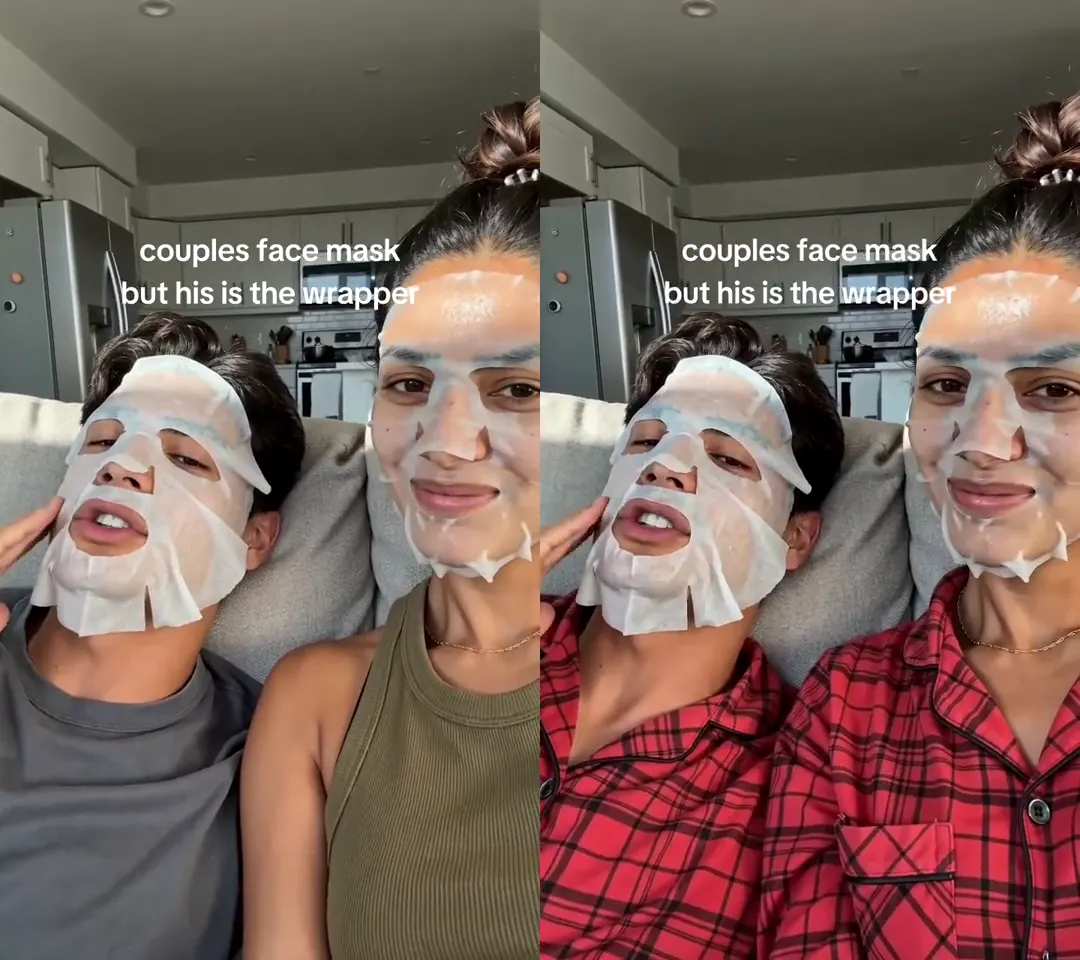
Click for the silent side-by-side: our own 12-second clip on the left, the pajama version on the right. Seedance 2.0 at 720p, from a written brief alone.
This one runs just over 12 seconds, a clip we made with AI in one continuous take: a couple on a sofa in face masks, except his is the wrapper, with the caption "couples face mask but his is the wrapper". Same engine and setting, written brief only: billed as 13 seconds, 1,560 credits, about 10 minutes.
Make this the Christmas version of the same clip by changing only their tops. The man's grey T-shirt and the woman's olive ribbed tank top become matching Christmas pajama tops: long-sleeve flannel with a collar and buttons, in the same bright red plaid with thin black lines on both of them. Keep everything else exactly as it is: the same two people, their faces, hair and expressions, the white mask on his face and the sheet mask on hers, every move and gesture, the sofa, the kitchen behind them, the camera angle, the framing, the timing, the sound and both voices, and the caption text and its position. The pajama tops are plain and unprinted: just the plaid, with no lettering anywhere on them. Add nothing else: no Christmas tree, no lights, no snow, no hats, no extra people, no new text.
Both tops came out in the same red plaid in every frame, with collars and buttons, and the long plaid sleeve shows when she lifts her hand to her face. Their faces, both masks, her gold necklace, every gesture, the sofa, the kitchen and the caption held, and the sound is the original track. Two small extras appeared: black piping around the collars and button edges, and a chest pocket on her top but not his. Here's the clip with sound.
Test 3: a pajama shirt and a garland in a kitchen
The third is a one-shot kitchen clip of just over 6 seconds, also made with AI. We changed a T-shirt to a plaid pajama shirt and added a pine garland with lights along the cabinets. It billed as 7 seconds, 840 credits, and took about 7 minutes. Both changes held in every frame. This is the one where the caption dropped, even though the brief named it; we put it back by editing the captions on the finished video, for no credits. The plaid also came out darker than we asked, the top came out longer, and a thin necklace appeared. The full brief and results are in our outfit test.
Test 4: add snow to a video
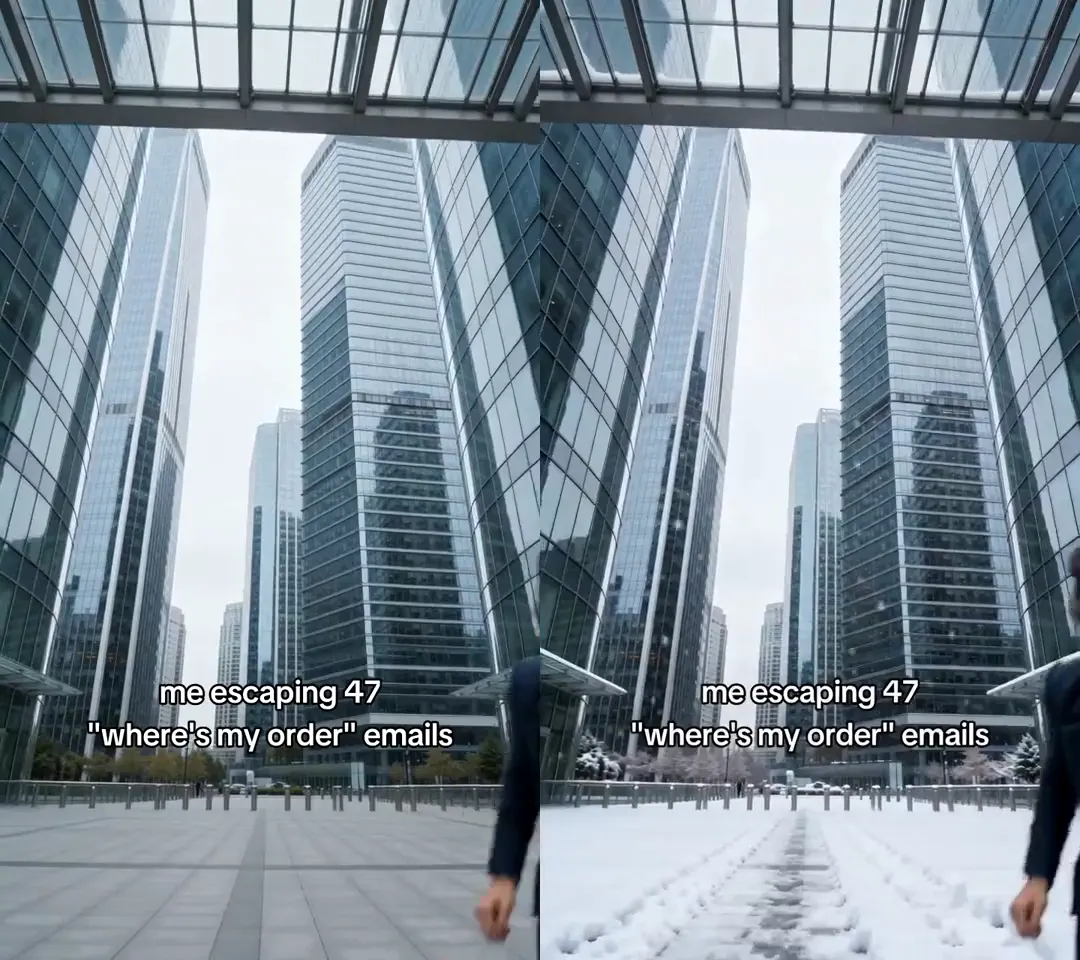
Click for the silent side-by-side: our own 5-second clip on the left, the snow version on the right. Seedance 2.0 at 720p, from a written brief alone.
The fourth clip is 5 seconds, also made with AI: a woman in a navy suit runs at a low camera across a paved plaza, with a few quick jump cuts late in the clip, the caption 'me escaping 47 "where's my order" emails', music and no dialogue. Same engine and setting, written brief only. It billed as 5 seconds, 600 credits, and took about 4 minutes, with no new analysis because we'd run this clip before.
Change only the weather: make it a snowy day. Snow falls steadily through the whole clip, soft flakes drifting past her and the camera. A layer of fresh white snow covers the ground of the plaza, the top of the glass canopy and the ledges of the towers, and the grey sky stays grey and a little brighter from the snow. Keep everything else exactly as it is: the same woman, her face, expressions, hair bun and the strands blowing loose, the navy suit and shirt, the thin gold chain, her run toward the camera and her fists, the glass canopy, the towers, the low camera angle, the framing, every cut, the timing, the sound, and the caption text and its position. Her clothes stay exactly the same, with no coat, no scarf and no gloves. Add nothing else: no Christmas decorations, no lights, no extra people, no new text.
| Brief | Result |
|---|---|
| Snow on the plaza | White from the first frame, apart from a patchy strip along the darker paving down the middle |
| Snow on the canopy and ledges | On the rims of the glass canopy and the two entrance canopies, but no snow shows on the tower ledges |
| Snow falling through the whole clip | Not as asked. A scatter of tiny flakes shows against the dark glass at the start, then almost nothing |
| Clothes stay the same | Same suit, with no coat, scarf or gloves, but snow landed on her shoulders, lapels and hair |
| Keep everything else | Her face, her run and fists, the chain, the towers, the camera angle, the framing and the jump cuts held, and so did the caption, redrawn in the same spot. The sound is the original track |
The snow on the ground worked, and the falling snow barely showed. She also blocks most of the plaza within about a second, so the white ground shows mostly at the start and in the bottom corners. A shot that keeps the ground in view should show more of the settled snow, but we didn't run one to compare. Snow also settled on things the brief didn't list, such as the trees and bollard tops, but that fits the weather. One extra appeared on the plaza: tracks like footprints on either side of the strip down the middle, with nobody there to make them. If you need visible flakes, an editor overlay on top of the re-render is the obvious next step, though we haven't tried the two together.
What the four tests tell you
Each clip was run once, so read these as four data points, not a rule.
- The boxes were the clearest miss. The added lights, tree and garland landed, and so did all three clothing changes. The boxes, the only prop we asked to turn into something else, stayed boxes. Our object test changed one object as the only change in the brief, and it landed, so try that, and check it. For an addition on its own, our add-an-object test put sunglasses and a plant into one clip and checked every half second.
- Falling snow also missed. The snow on the ground landed, but the flakes the brief asked for through the whole clip barely showed.
- Two people worked in our one try. Both tops came out in the same red plaid in every frame, though only hers got a chest pocket.
- Small extras get through. Dotted paper, piping, a pocket, a necklace, tracks in the snow: none were in a brief, and every brief said to add nothing else.
- Text needs checking. The caption held in three clips of four, and all four briefs named it. Check it every time.
- The sound held in all four. Listen once before you post anyway.
All four clips were made with AI. We haven't tested phone footage of a real person, and on a Seedance engine the vendor's content review checks each clip first and can turn one down.
A Christmas AI video prompt you can reuse
The first two briefs above follow the same shape. Fill in the brackets:
Make this the Christmas version of the same clip by changing only [one or two things]. [Say what each looks like and where it sits.] Keep everything else exactly as it is: the same person, their face, hair and expressions, every move and gesture, [the room and what's in it], the camera angle, the framing, the timing, the sound and voices, and the caption text and its position. [The new item] is plain and unprinted, with no lettering. Add nothing else: no [what you don't want], no extra people, no new text.
Keep the list short, and say where each change sits. "Warm white string lights along the top of the windows" landed; a vague "make it festive" leaves the choices to the model. The room test asked for three changes and one missed. Of the three clips with one or two changes, two landed them all, and the snow clip got snow on the ground but barely any flakes. That's too few runs to prove a limit, but one or two is the safer start. The last line is there to rule things out: nothing we ruled out by name appeared in our clips, though we never ran one without that line. Kling's Christmas page gives a good rule for any tool: describe generic decorations and original characters, not branded ones.
If your clip has several shots
Jump cuts in one place were fine in the two clips that had them. Cuts between different places can be harder, depending on the change. When we turned a 12-shot clip from day to night, Seedance 2.0 turned only the first shot to night, in two runs, and Seedance 2.5 at 480p reached 6 of the 12. So for a holiday version of a clip with several locations, check every shot, and if one shot matters most, cut it into its own clip and run it on its own.
Turn a winning ad into a holiday version
The same steps apply to an ad that's already selling: ask for the hook, the pacing and the voice to stay, and dress the setting for the season. We haven't run this on an ad yet. Our tests were comedy clips, so list the product, the packaging and any on-screen offer among what must stay, and check each one in every frame.
Don't count a holiday version as a new concept, though. Meta groups ads that share key visual and thematic attributes, so it's a seasonal refresh of the same ad. Our Black Friday and Christmas 2026 plan covers how many concepts to bring and when to launch them. A re-render is AI-drawn, so read TikTok's AI label rules before you run one there.
How to make a Christmas version with Swap
- Add your clip in Swap, up to 45 seconds and 100 MB.
- Write the change in "What to change", using the prompt above.
- List what must stay: the person, the room, the moves, the camera, the timing, the sound and any caption.
- Say what to leave out: "no snow, no hats, no new text".
- Check the price, then select Riff it →.
- Watch every frame before you post. If a caption dropped, the free caption editor can add it back once the whole video is made, in Riffkit's caption style rather than the original's.
You can also run Swap from ChatGPT, where Riffkit is in the plugin directory (add it), or from Claude with the Riffkit connector; how to make videos in ChatGPT and Claude has the setup for both.
What it costs, and how to start free
Swap bills per second of finished video, each render rounded up to whole seconds: on Seedance 2.0 that's 60 credits a second at 480p and 120 at 720p. You only pay for seconds that rendered: a run that fails before any video comes out costs nothing, and one that fails or is cancelled partway bills only what finished. Plans start at $15 a month for 3,000 credits; at that price, a 1,560-credit test comes to about $7.80.
You can sign up free, with no card, and new accounts usually start with free credits. A free account can Swap on Seedance 2.0 Fast or Seedance 2.0 at 480p. A clip under 8 seconds comes back whole, so our kitchen clip, billed as 7 seconds, would cost 420 credits on Seedance 2.0 at 480p, or 350 on Seedance 2.0 Fast. A longer one usually comes back as its first section, and a plan finishes the rest at the same engine and resolution. Videos on a free account carry a small Riffkit watermark; any plan removes it from every video, earlier ones included. We ran these tests at 720p, which comes with a plan.
Rights: holiday versions of clips you own
Use footage you own or have the rights to: adding lights doesn't change who holds the rights to the person's likeness, the voice, the footage or the music. A video that won on someone else's account still belongs to them. To riff its formula into your own story, use Adapt, which makes new footage; it lays the source's music under it by default, so check you can use that track, or change it (where the line sits).
Open Swap and try it on a clip of your own. For changing the setting altogether, see our background test.
FAQ
How do I make a Christmas AI video from a clip I already have?
Use a tool that re-renders your clip from a written change. In Riffkit's Swap mode, add the clip (up to 45 seconds and 100 MB), write one or two Christmas changes in "What to change", list what must stay, and render. In four tests on Seedance 2.0, on clips made with AI, string lights, a lit tree, a garland, matching red plaid pajama tops and snow on the ground all held to the last frame, and the original sound came back unchanged. Falling snow barely showed, one caption dropped, and boxes we asked to turn into presents stayed boxes, so check every frame.
Can I make a Christmas AI video for free?
Yes, to try it. You can sign up for Riffkit free with no card, usually with free credits, and Swap on Seedance 2.0 Fast or Seedance 2.0 at 480p. A clip under 8 seconds comes back whole. A longer one usually comes back as its first section, and a plan finishes the rest. Free videos carry a small Riffkit watermark, and any plan removes it from every video, earlier ones included.
What's a good Christmas AI video prompt?
Name one or two changes, say what each looks like and where it sits, list everything that must stay, and end with what to leave out. For example: "warm white string lights along the top of the windows, keep everything else exactly as it is, add nothing else: no snow, no hats, no new text." In Riffkit's tests, most of the specific placements landed and nothing ruled out by name appeared, but small details nobody asked for still got in, such as a chest pocket and a thin necklace, so check the result.
Can AI add Christmas decorations to a video I already have?
Yes. In Riffkit's room test on Seedance 2.0, on a clip made with AI, string lights on the windows, a small lit tree and wrapped presents all appeared and held through two jump cuts, with the same woman, moves, camera and sound. One thing missed: the boxes we asked to turn into presents stayed boxes, and the presents were added beside them. Phone footage of a real person isn't tested yet.
Can AI add snow to a video?
Yes for snow that settles; the falling snow we asked for barely showed. In Riffkit's test on Seedance 2.0, on a 5-second AI-made clip of a woman running across a paved plaza, one written brief turned most of the plaza white and put snow on the canopy rims, with the same person, moves, caption and sound. Snow also landed on her shoulders and hair, which the brief didn't ask for, and the towers look unchanged. For visible flakes over a clip, an editor overlay is the quick route: as CapCut's guide puts it, ordinary overlays place prebuilt flakes across the frame. We haven't tried a snow overlay on top of a re-render.
Will my video keep its original sound?
In all four of Riffkit's tests on Seedance 2.0, yes: the finished video came back with the clip's original track and the same timing. List the sound and voices among what must stay, then listen to the result before you post.
Can I make a holiday version of an ad that's already working?
Yes, though Riffkit's four tests were on comedy clips, not ads. Re-render the ad from a written change that keeps the hook, the pacing and the voice and dresses the setting for the season. List the product, the packaging and any on-screen offer among what must stay, and check each one in every frame. Count it as a seasonal refresh of the same ad rather than a new concept, because Meta groups ads that share key visual and thematic attributes.
Can I use a Christmas AI video made in Riffkit commercially?
Yes, if you own the footage or have the rights to it: what you make in Riffkit is yours to post, run as ads and monetize. Adding lights doesn't change who holds the rights to the person's likeness, the voice, the footage or the music. Keep decorations generic too: Kling's Christmas page advises original characters over a branded Santa, and generic ornaments over real-brand ones or logos.
Keep reading
Add an Object to a Video with AI (Real Test)
Add an object to a video with AI and keep the person, moves and sound. Our test put sunglasses and a plant into an 11-second clip, checked every half second.
Change the Person in a Video with AI (Real Test)
Change the person in a video with AI: eight tools compared, and our 11-second test where words changed her hair but not her face. Why a photo helps.
Replace an Object in a Video with AI (Real Test)
Replace an object in a video with AI and keep the person, room, camera and sound. Our keyboard test, checked every half second, plus the tools and the cost.